
Sprites are small icons that you can set up to appear on your live video in Virtual Keypad App, which can be used to automate devices in an area. By tapping the Sprite icon on your screen, you can change the status of your device from ON to OFF or OFF to ON.
The status change triggers automatically when a Sprite is selected in portrait or landscape orientation. When your phone is in portrait orientation, you can adjust the state of some devices using a toggle, button, or slider. You can add up to ten Sprites per live video stream.
The Sprites feature is compatible with V-6000 Series Cameras, XV Gateway Cameras, and Axis® Cameras with the Virtual Keypad Driver.
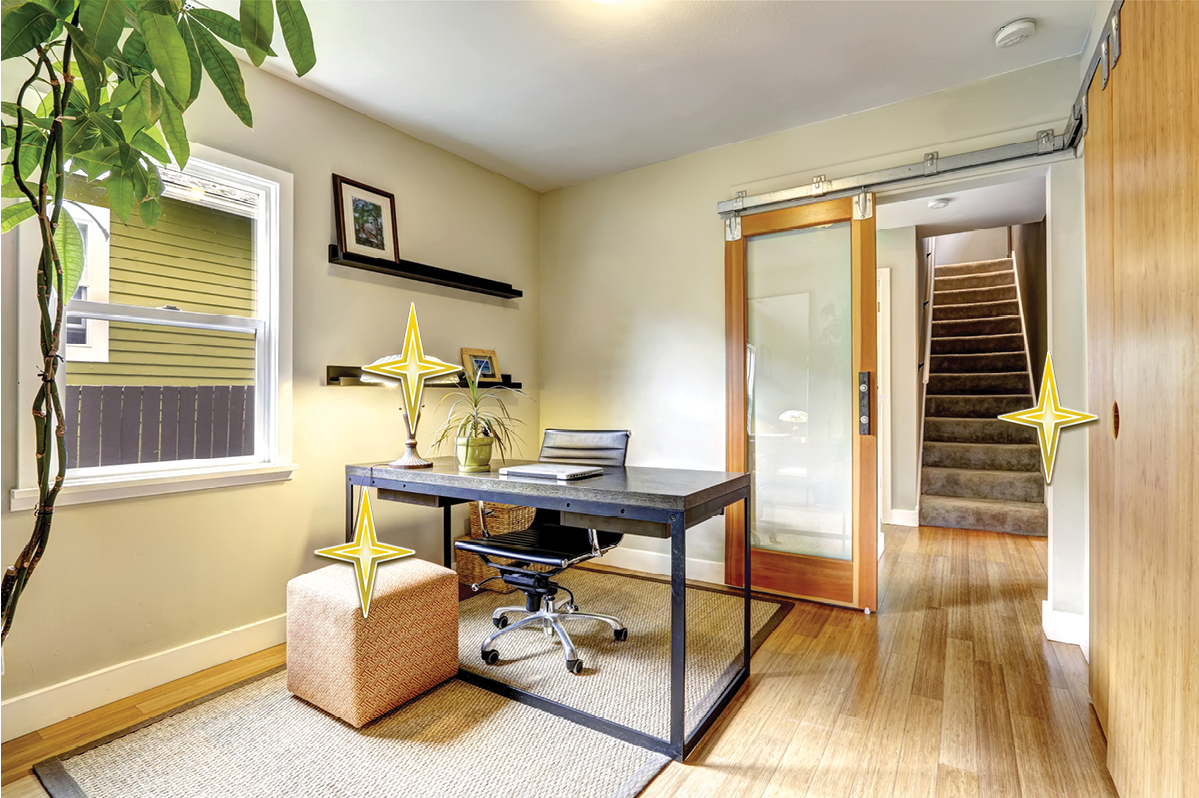
Add a Sprite
To add a Sprite, complete the following steps:
-
Open the Video tab.
-
Select a camera view.
-
Select the Sprite overlay icon

-
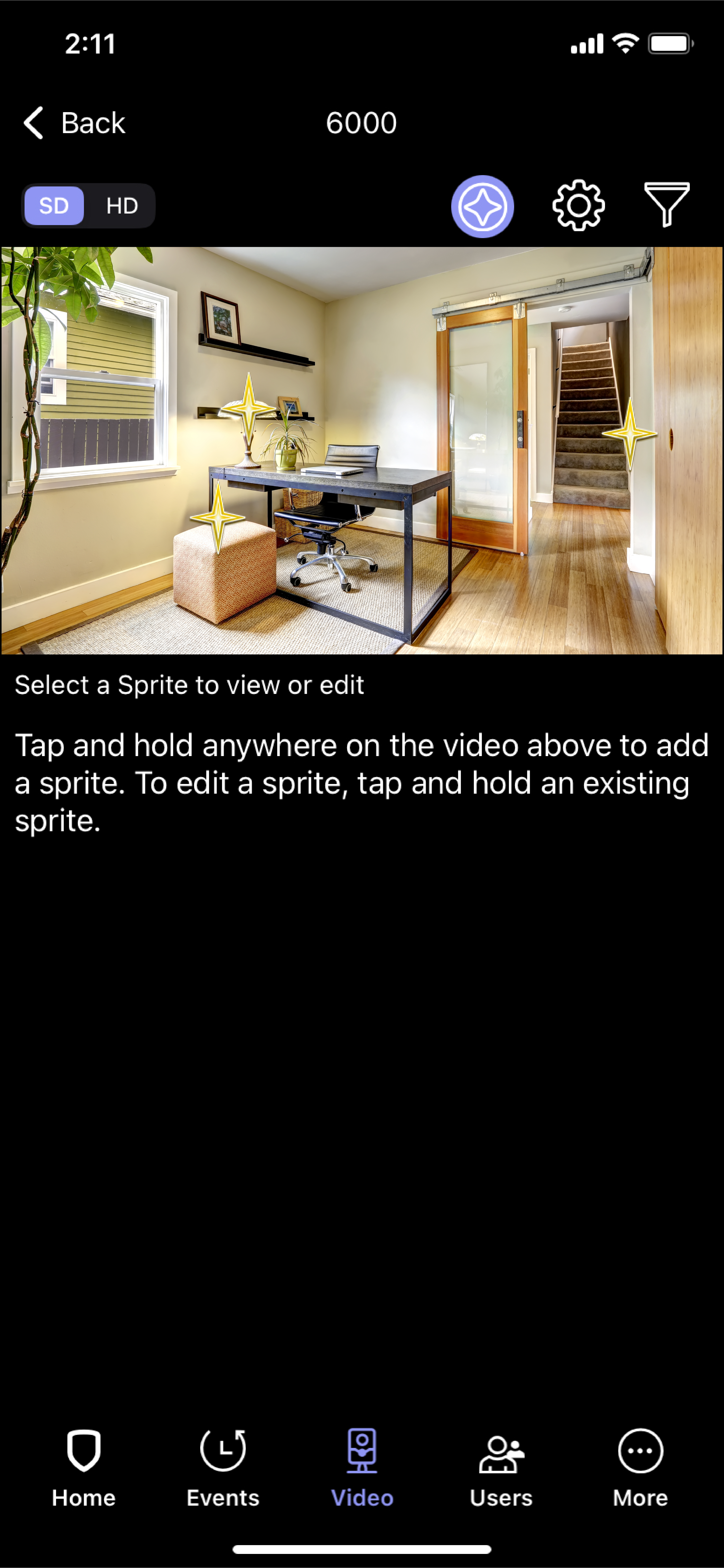
Tap and hold on the area of the camera snapshot you want to place the Sprite.
-
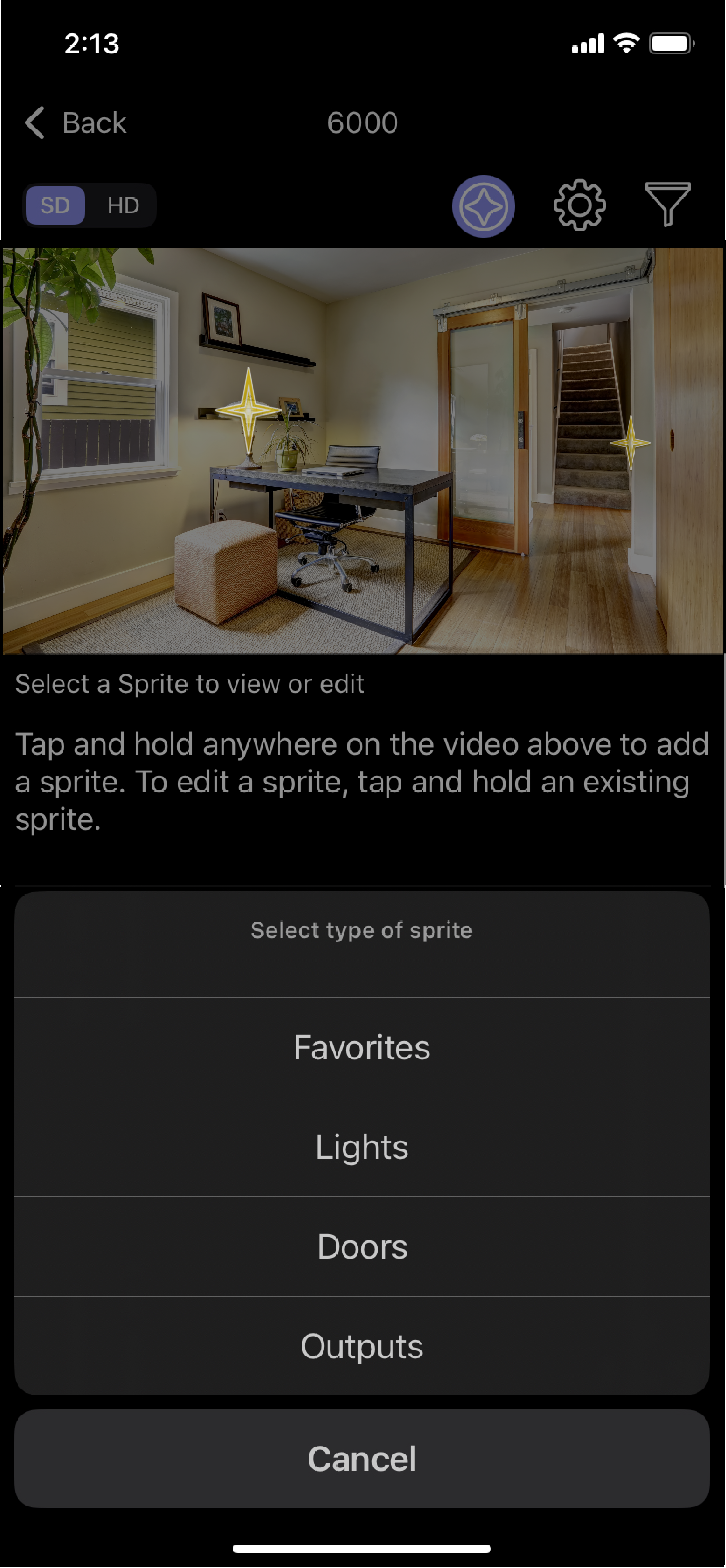
A pop-up appears. Select the type of Sprite you want to create.
-
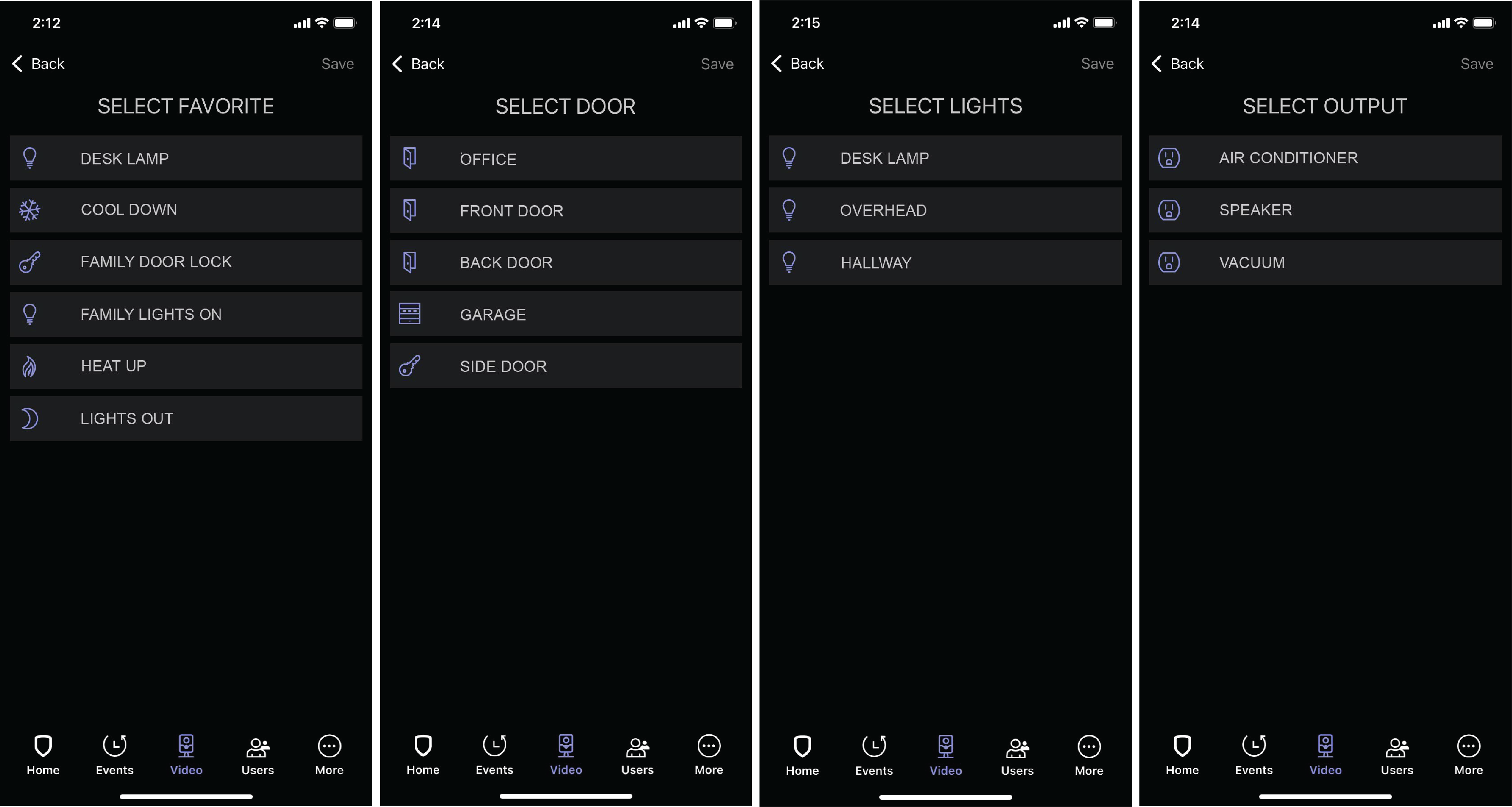
Depending on the Sprite type, you are directed to a screen similar to the following. Select the device you want to associate to the Sprite.
-
Select Save in the upper right corner of the screen.
-
Repeat steps 3-6 to add additional Sprites.
Use a Sprite
To use a Sprite that has already been added, complete the following steps:
-
Open the Video tab.
-
Select a camera view.
-
Select the Sprite overlay icon
-
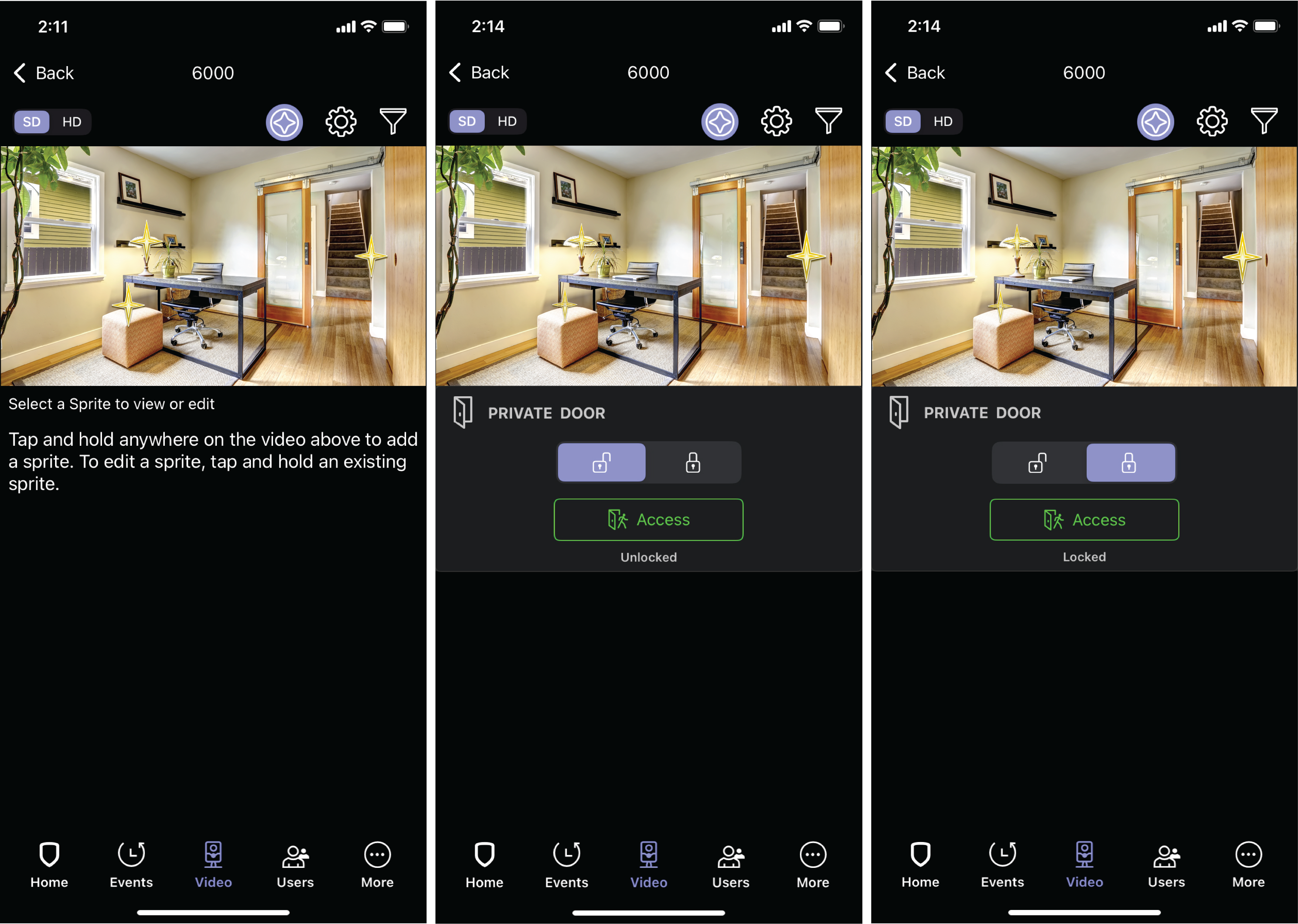
Tap the Sprite that you want to use. The Sprite changes the device status.
-
A device that is already OFF is turned ON, while a device that is already ON is turned OFF.
-
Favorites can only be activated, not turned on or off.
-
734 Access Control Doors can only be activated for the strike time of the door, not turned on or off.
-
Note: When your phone is in portrait orientation, you can adjust the state of some devices using a toggle, button, or slider.
-
To use a different Sprite, simply tap it on the screen and Virtual Keypad opens the associated display.
Edit a Sprite
To edit an existing Sprite, complete the following steps:
-
Open the Video tab.
-
Select a camera view.
-
Select the Sprite overlay icon
-
Tap and hold the existing Sprite.
-
A pop-up appears. Select the type of Sprite.
.png)
-
Select the new device you want to associate to the Sprite.
-
Select Save.
Delete a Sprite
To delete a Sprite, complete the following steps:
-
Open the Video tab.
-
Select a camera view.
-
Select the Sprite overlay icon
-
Tap and hold the existing Sprite.
-
A pop-up appears. Select Delete.